
7 Great Ways to Master Google Classroom in 2026
Tired of chasing students for assignments and spending weekends buried in answer sheets? You're not alone. Google Classroom is the answer for many Indian tutors and coaching centres, but just using it isn't enough in 2026.
Quick Summary
- Set up your Google Classroom with clear topics for subjects like JEE Physics or CBSE English.
- Use the google classroom login on both the web and the mobile app to stay connected.
- Connect AI tools like IntelGrader to grade assignments automatically and save dozens of hours.
Key facts at a glance
- Google Classroom supports over 150 million educators and students globally as of 2025.
- Integrating automated grading tools with Google Classroom reduces assignment turnaround times by up to 60% in 2026.
- The Google Classroom app has maintained a 4.5+ star rating on the Google Play Store with over 100 million downloads.
- Over 80% of CBSE-affiliated schools in India utilize Google Workspace for Education tools for digital assignments.
What is Google Classroom and how has it evolved for Indian classrooms in 2026?
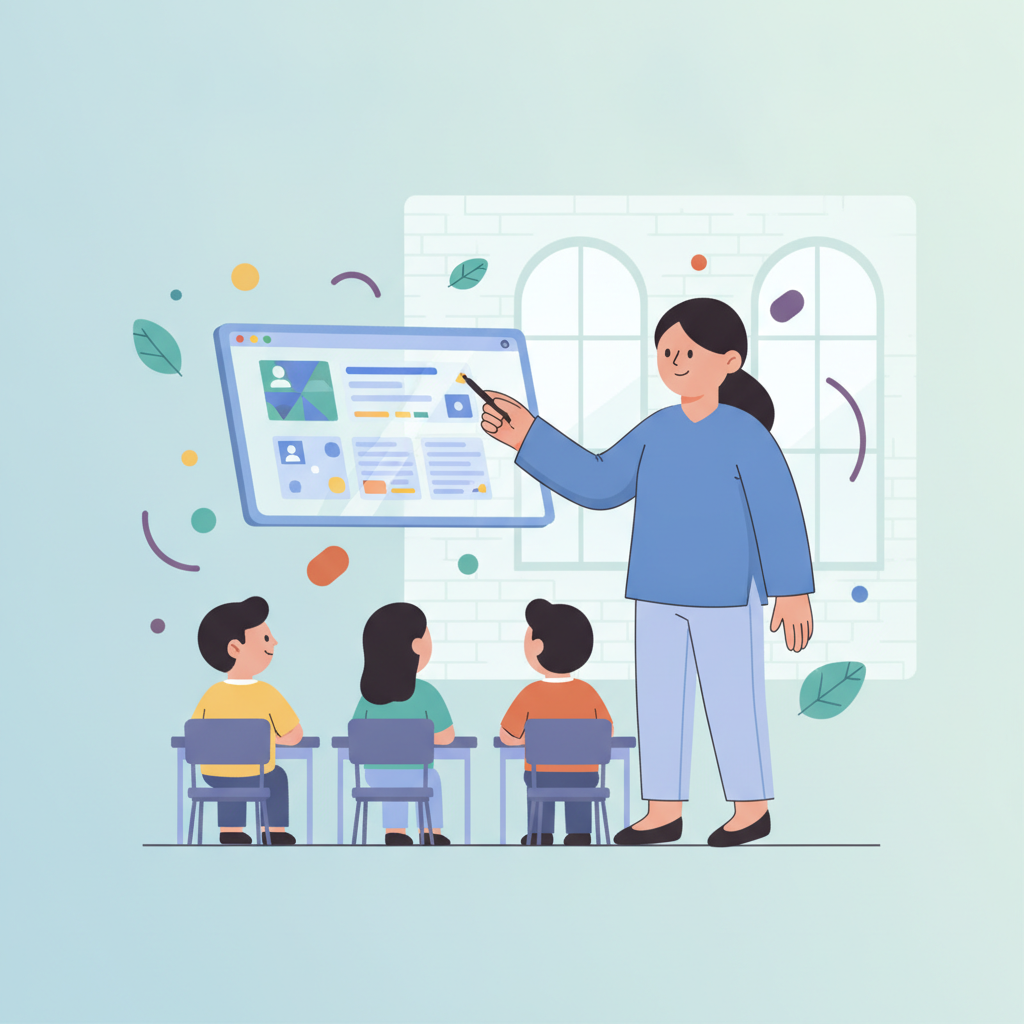
Google Classroom is a free digital platform by Google that helps teachers manage assignments, communicate with students, and stay organised. It’s not just a file-sharing service anymore. By 2026, it has become the central hub for thousands of Indian coaching centres and tuition classes, especially with the push from NEP 2020 towards competency-based learning.
Think of it as your digital staffroom, noticeboard, and submission desk all rolled into one. For a tuition centre preparing students for NEET or JEE, it means you can create separate digital classrooms for Physics, Chemistry, and Biology, each with its own materials and assignments. The platform has also adapted with better local language support and integrations that matter to us here in India. It’s a foundational tool for managing the new digital assessment mandates, like CBSE's On-Screen Marking for Class 12.
Key features for Indian educators in 2026 include:
- Google Meet Integration: Start a live doubt-clearing session with one click.
- Topic Organisation: Structure your class by CBSE/ICSE chapters or exam modules.
- Assignment Scheduling: Plan and schedule your weekly tests and homework in advance.
- Plagiarism Reports: Check for originality on student submissions.
How do you complete the google classroom login and setup process?
You complete the google classroom login by visiting classroom.google.com and signing in with your Google account, usually your school or centre's G Suite ID. The process is simple and takes less than five minutes for both teachers and students.
For teachers, the setup involves creating your first class. For students, it's about joining that class. The google classroom login is your gateway to this entire digital space.
For Teachers: Creating Your Class
- Go to classroom.google.com.
- Complete your google classroom login with your official email ID.
- Click the '+' icon in the top-right corner and select "Create class".
- Fill in the details: Class name (e.g., "Class 10 Maths - CBSE"), Section, Subject.
- Click "Create". Your digital classroom is now ready.
For Students: Joining a Class
- Go to classroom.google.com or open the google classroom app.
- Use your google classroom login credentials provided by your institution.
- Click the '+' icon and select "Join class".
- Enter the google classroom join code your teacher gave you.
- Click "Join". You're in!
Here’s a quick breakdown of what each role can do after the google classroom login:
| Action | Teacher Account | Student Account |
|---|---|---|
| Create Assignments | Yes | No |
| Grade Submissions | Yes | No |
| Post Announcements | Yes | Yes (if enabled) |
| Submit Work | No | Yes |
| View Grades | Yes (all students) | Yes (own grades) |
Where can you find the google classroom download for mobile and PC?
You can download the google classroom app from the Google Play Store for Android or the Apple App Store for iOS; for PCs, it works directly in your web browser. There's no separate desktop application to install, which keeps things simple.
Most of your students will likely use the mobile app. It's excellent for getting notifications about new assignments or grades. As a teacher, having the google classroom app on your phone is great for making quick announcements or checking submissions on the go.
- For Android: Search for "Google Classroom" on the Google Play Store.
- For iOS (iPhone/iPad): Search for "Google Classroom" on the Apple App Store.
- For PC/Laptop (Windows, Mac, Linux): Just open your web browser (like Chrome) and go to classroom.google.com. You can create a desktop shortcut for easy access.
The experience is consistent across all devices, so you don't have to worry about features being different. The classroom google platform is built for access anywhere.
How do students use a google classroom join code to enter a digital session?
Students use a google classroom join code, a short alphanumeric code provided by the teacher, by clicking the '+' icon on their dashboard and entering it. This is the most common way for an entire batch to join a new class quickly.
As a teacher, you can find your class code right on the Stream page of your classroom google dashboard. You can display it on a screen during a physical class or share it via a WhatsApp group.
Two Ways Students Can Join:
Using the Google Classroom Join Code:
- Teacher shares the code (e.g.,
sz3k4g). - Student logs in, clicks '+', selects 'Join Class'.
- Student types the code and is instantly added. Simple.
- Teacher shares the code (e.g.,
Using an Email Invite:
- Teacher goes to the 'People' tab in their Google Classroom.
- Clicks the 'Invite students' icon.
- Types the student's email address and sends the invite.
- Student receives an email with a 'Join' button. This is better for smaller groups or when you want to ensure only specific students join.
Honestly, the google classroom join code method is the easy win for getting a full batch of 30-40 students onboarded in minutes.
What are the 7 best ways to master google classroom in 2026?
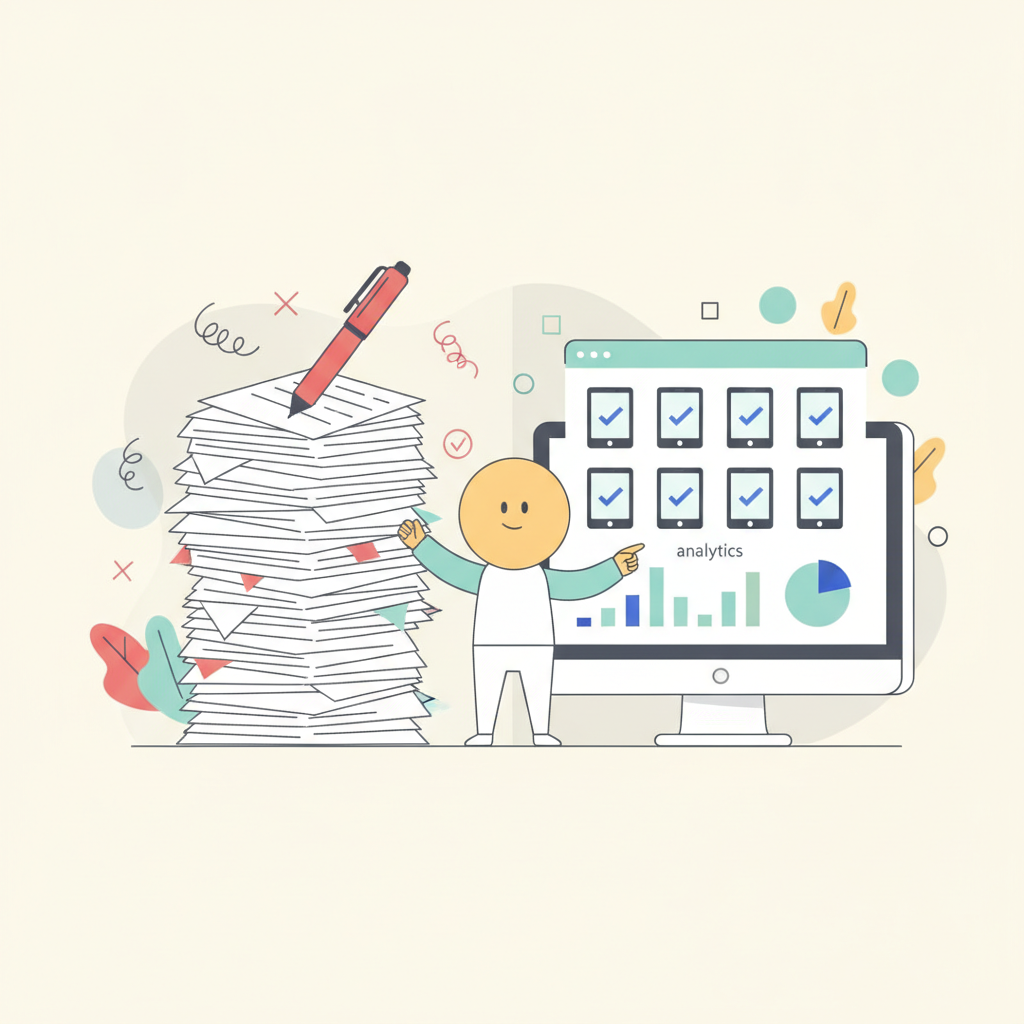
The 7 best ways to master Google Classroom in 2026 involve using AI for grading, setting up topic-based workflows, creating interactive assignments, and integrating third-party tools. Moving beyond the basics is what separates a good digital classroom from a great one.
Here’s how you can do it.
1. Automate Your Grading with AI
This is the biggest game-changer. Manually grading 50 descriptive answers for a Sunday test takes hours. With AI, it takes minutes. This is where a google classroom integration with grading tools becomes so valuable. Platforms like IntelGrader connect directly to your Google Classroom. You post an assignment, students submit their work, and IntelGrader's AI grades it with over 95% accuracy, providing detailed feedback. It's a lifesaver for subjects like Social Studies, English, and even theoretical Physics questions for JEE.
2. Organise Everything with "Topics"
Don't just dump all your assignments on the Classwork page. It becomes a mess. Use the "Create" -> "Topic" feature to structure your content. Good structures for Indian coaching centres include:
- By Chapter: "Chapter 1: Real Numbers", "Chapter 2: Polynomials"
- By Subject Module: "JEE - Mechanics", "JEE - Electrodynamics"
- By Week: "Week 1 (April 4-8)", "Week 2 (April 11-15)" This simple step makes your classroom google page easy for students to follow.
3. Use Rubrics for Crystal-Clear Grading
Stop the "Sir, why did I lose marks here?" questions. Create a rubric for every subjective assignment. Google Classroom has a built-in rubric feature where you can define criteria (e.g., "Clarity," "Accuracy," "Structure") and performance levels (e.g., "Excellent - 5 marks," "Good - 3 marks"). Students see the rubric before they start, so they know exactly what you're looking for. This is a core part of NEP 2026's competency-based assessment goals.
4. Make Assignments Interactive
An assignment doesn't have to be just a Google Doc or a PDF. Mix it up to keep students engaged.
- Google Forms: For quick MCQs and quizzes with automatic grading.
- Google Jamboard: For collaborative brainstorming or solving a math problem together.
- External Links: Share links to PhET simulations for science or a YouTube video for history.
This is one of the most effective google classroom tips for hybrid learning, as it works for both in-person and remote students.
5. Schedule Your Entire Week in Advance
You don't have to be online at 8 AM every day to post the daily assignment. When you create an assignment, instead of clicking "Assign," click the dropdown arrow and select "Schedule." You can set the exact date and time it goes live. A pro tip for how to use google classroom for teachers: spend one hour on Sunday scheduling all your posts for the week.
6. Master the Communication Channels
Google Classroom gives you three ways to talk to students. Use them correctly to avoid confusion.
- Announcements (on the Stream): For messages to the whole class. "Reminder: Test on Friday."
- Public Comments (on an assignment): For questions about the assignment that everyone can see. "Sir, is question 3 in the syllabus?"
- Private Comments (on a submission): For giving individual feedback. "Rohan, great work on the introduction, but check your calculation in the final step."
7. Integrate Google Meet for Live Classes
The built-in Google Meet link in your Google Classroom header is a fantastic feature. It creates a dedicated, secure meeting room for your class. No more sending new links every day. Students just log into Google Classroom and click the link. This is one of the best google classroom updates 2026 has solidified for hybrid education.
Ready to see how AI grading can cut your workload by more than half?
[Book a free demo of IntelGrader and see it work with your Google Classroom.]
How does Google Classroom integrate with modern digital assessment tools?
Google Classroom integrates with assessment tools through its API, allowing platforms like IntelGrader, Turnitin, and quiz makers to sync assignments and grades automatically. This means you don't have to manually transfer marks from one system to another. It creates a smooth workflow from assignment creation to final grading.
The google classroom integration with grading tools is what makes the platform truly powerful for serious educational institutions. You can build a full digital assessment system around it.
| Tool Category | Example | How it Integrates with Google Classroom |
|---|---|---|
| AI Grading | IntelGrader | Pulls assignments, grades them using AI, and pushes grades and feedback back. |
| Plagiarism Checkers | Turnitin | Checks student submissions for copied content directly within the assignment workflow. |
| Interactive Quizzes | Kahoot!, Quizizz | Allows you to post quiz games as assignments and import the scores into your gradebook. |
| Digital Whiteboards | Jamboard, Miro | Can be attached to assignments for collaborative problem-solving. |
This ability to connect with other specialised tools is a key reason why Google Classroom remains a top choice for teachers who want to do more than just collect files.
Why should schools transition to paperless workflows using classroom google?

Schools should go paperless with classroom google to save significant money on printing, reduce administrative workload, and create a secure, accessible digital record of student work. The benefits go far beyond just saving trees; they have a real impact on your budget and your time.
Think about the costs for a typical coaching centre.
- Printing Costs: Question papers, worksheets, notes. It all adds up.
- Storage Costs: Physical space needed to store years of student answer sheets and records.
- Time Costs: The hours spent printing, distributing, collecting, and physically managing piles of paper.
A digital workflow using classroom google almost completely eliminates these.
The Financial and Admin Benefits
| Aspect | Paper-Based Workflow | Digital Workflow with Classroom Google |
|---|---|---|
| Cost per Student/Year | ₹1,000 - ₹2,500 (paper, ink, printing) | ~₹0 (if using free Google tools) |
| Assignment Turnaround | 3-7 days (collection, grading, return) | 1-2 days (or instant with AI grading) |
| Record Keeping | Bulky files, risk of loss/damage | Secure cloud storage, instantly searchable |
| Accessibility | Limited to physical copies | Access anytime, anywhere via the web or app |
Transitioning to a paperless system is not just a modern trend; it's a smart business decision. It frees up your resources—both time and money—to focus on what actually matters: teaching your students.
Ready to Master Your Digital Classroom?
Stop letting manual tasks slow you down. By combining the powerful organisational features of Google Classroom with the speed of AI grading from IntelGrader, you can build a truly efficient and effective learning environment for 2026 and beyond.
[See how IntelGrader can transform your grading process. Book your free demo today.]
Frequently Asked Questions
What is Google Classroom?
Google Classroom is a free web service developed by Google for schools and coaching centres that simplifies creating, distributing, and grading assignments. It brings together Google Drive for assignment creation, Gmail for communication, and Google Calendar for scheduling into one cohesive platform.
How do I log into Google Classroom?
You log into Google Classroom by navigating to classroom.google.com in a web browser or opening the mobile app. You then sign in using your Google Account, which is typically an email address provided by your school or institution (e.g., yourname@yourschool.edu.in).
How do I download Google Classroom?
You can download the google classroom app for mobile devices from the Google Play Store (for Android) or the Apple App Store (for iOS). For desktop or laptop computers, there is no application to download; you access it directly through a web browser like Google Chrome.
How do I join a class on Google Classroom?
You can join a class on Google Classroom in two ways. The most common way is by getting a google classroom join code from your teacher, logging in, clicking the '+' symbol, and entering the code. Alternatively, your teacher can send you an email invitation, and you can join by clicking the link in the email.
Ready to transform your grading?
See how IntelGrader can save your tutoring centre 10+ hours per week with AI-powered grading.